

Why n8n for Product Managers, and What You'll Build
Plenty of product managers hear about no-code automation for PMs and assume it requires engineering skill. n8n for product managers is actually a reasonable entry point: it is a visual workflow builder where you connect apps with nodes instead of writing code. This n8n first workflow tutorial focuses on one concrete goal, so you finish with something usable rather than a pile of half-understood concepts.
The goal: a workflow that runs on a schedule, checks your task tool for items changed yesterday, and assembles them into a short morning brief. That is a common team-management need, and it is small enough to build in one sitting.
Before you start, you need your account details ready and an account on the task tool you plan to connect. This tutorial uses Jira as the data source, since n8n publishes an official Jira Trigger node for connecting the widely used issue-tracking product to a workflow.
Sources: Jira Trigger | Nodes | n8n Docs, Build your first workflow | n8n Docs
An n8n Cloud Beginner Tutorial: Creating Your Account
n8n's own quickstart tutorial recommends n8n Cloud for new users, making it the practical starting point for n8n for product managers rather than the self-hosted Community Edition. Signing up for the first time creates what n8n calls an owner account, which initializes your workspace.
New n8n Cloud workspaces come with a 14-day trial of the Pro plan's features, giving you room to experiment before deciding on a paid plan. Trial length and included features are subject to change, so check the current pricing page before you commit.
Once your account exists, open the workflow editor and start a blank canvas. Everything from here builds on that single empty workflow.
Sources: Set up for Cloud | Administer | n8n Docs, Build your first workflow | n8n Docs, Try free then choose a plan | Deploy | n8n Docs
Build Your First Workflow, Step by Step
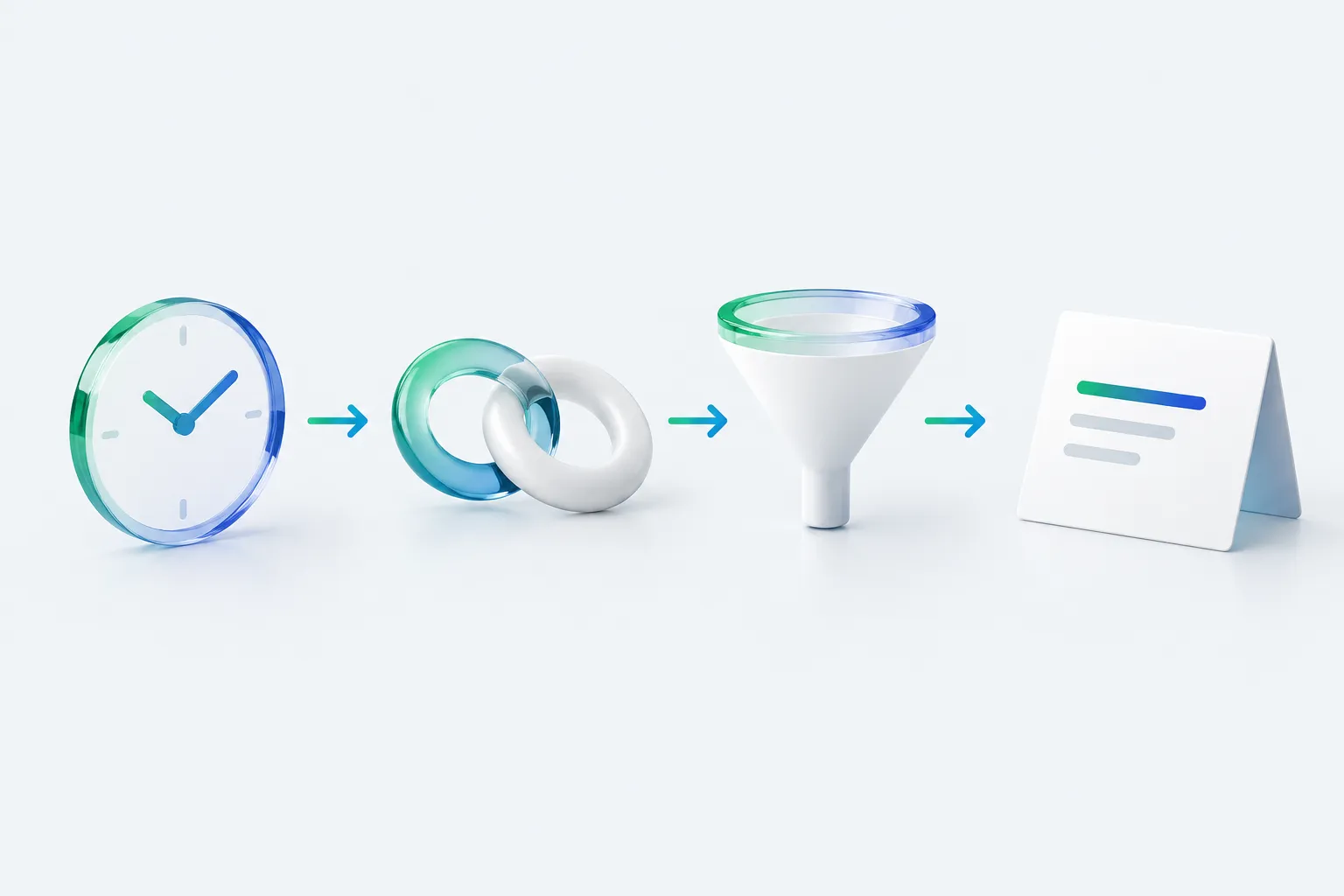
n8n workflows can start automatically using a trigger node as their first step, rather than only running when you click a button. Add a Schedule Trigger node, since it is built specifically to run workflows at fixed intervals and times, similar to a Unix cron job.
Next, add n8n's official Jira Trigger node and set up its credentials so the workflow can connect to your Jira account. For configuring exactly which issues it captures, such as items changed recently, follow n8n's own Jira node documentation rather than treating this as fully explained here.
To narrow those issues down to yesterday's changes, add a Filter node. It supports Date and Time comparisons such as 'is after,' the documented way to keep only items inside a date window. Pair that with an expression built from n8n's today variable, the same pattern n8n's own cookbook uses to calculate date offsets from the current day.
Building your morning task brief
- Add a Schedule Trigger: Set it to fire each weekday morning so the workflow starts on its own.
- Connect your task tool: Add n8n's official Jira Trigger node and set up its credentials, then check n8n's own documentation for configuring which issues it captures.
- Filter to yesterday's changes: Use the Filter node's Date and Time comparison with a today-based expression to keep only relevant items.
- Format the digest: Shape the filtered items into a message using one of n8n's own formatting nodes, following n8n's documentation for the details.
- Test each node manually: Run steps individually before trusting the live schedule.
- Publish the workflow: Publishing activates the schedule so the brief runs unattended.
Filtering in n8n comes in two flavors: a non-destructive visual filter and the dedicated Filter node, which actually removes non-matching items from the workflow. For a morning brief you want the latter, so only relevant items reach your digest.
A third-party PM newsletter describes n8n as connecting to a very large number of systems, including common task tools like Slack, Airtable, and Jira, and frames learning n8n as a way to automate repetitive PM work. Treat that as a promotional claim from an outside source rather than documented product behavior, and verify any specific integration against n8n's own node list.
Once your filtered items look right, shape them into a readable message using one of n8n's field-editing or formatting nodes. Consult n8n's own documentation for those nodes to configure the exact layout, since that detail sits outside this general walkthrough.
Then test the chain manually with n8n's Execute step before trusting the schedule. Finally, publish the workflow, since a Schedule Trigger only runs automatically once you publish it.
If you want extra low-stakes practice before wiring up your real Jira account, you may also come across n8n-challenges.app, a separate site aimed at n8n beginners. We have not independently verified what it currently offers, so treat any use of it as optional and outside the scope of this tutorial.
Sources: The Ultimate Guide to n8n for PMs - by Paweł Huryn, Build your first workflow | n8n Docs, Schedule Trigger | Nodes | n8n Docs, Common issues | Nodes | n8n Docs, Jira Trigger | Nodes | n8n Docs, Filter | Nodes | n8n Docs, Filter out unwanted data | Build | n8n Docs, Work with dates and times | Build | n8n Docs
Expected Results and Troubleshooting

Run correctly, your first morning brief arrives on schedule with a short list of Jira items changed since the previous day, ready to scan before standup. It will not be polished, and that is fine for a first build.
The most common early problem is a Schedule Trigger firing at an unexpected time. n8n Cloud tries to detect your account owner's timezone automatically when you sign up, but detection is not guaranteed. If your brief arrives at the wrong hour, the documented fix is to check and adjust the workflow or instance timezone setting first, since that is the cause n8n's own troubleshooting guidance points to.
Sources: Schedule Trigger | Nodes | n8n Docs, Common issues | Nodes | n8n Docs
Extending the Brief, and Where It Fits Into Team AI Adoption

Delivering the digest to Slack or email is a natural next step once the trigger-fetch-filter chain works reliably. Build and test that core chain first, then consult n8n's own Slack or Send Email node documentation directly when you are ready to add delivery.
This n8n Cloud beginner tutorial covers one small automation, but the habit it builds matters more than the workflow itself. Learning n8n for product managers this way, one small working piece at a time, is a realistic model for how non-technical teams adopt automation broadly.
A single working morning brief does not tell you how your wider team is actually using AI and automation tools, where skills gaps sit, or which barriers are slowing adoption. Those questions call for structured measurement rather than one person's build log.
Frequently asked questions
Who should own the workflow after it's built and published?
The product manager who built it should stay the owner unless it moves into a shared team account, since they understand its logic and can fix issues. Keeping a short changelog of changes helps whoever maintains it later, especially if the workflow breaks weeks after launch.
How long does building this first workflow actually take?
There's no fixed benchmark for how long this takes, since it depends on your Jira setup and comfort with the n8n editor. Connecting the trigger and Jira node is usually quick, while getting the date filter and message formatting right through manual testing tends to take the most iteration.
Can I use Asana or Notion instead of Jira for this tutorial?
The steps generalize to other task tools, but this tutorial specifically follows n8n's documented Jira Trigger node. If you use a different tool, check n8n's own node documentation for that app before adapting the filter and format steps described here.
What happens to my workflow after the n8n Cloud trial ends?
If you don't upgrade before the trial period ends, n8n's own guidance is to check the current pricing page for what happens next, since plan terms, features, and usage limits can change and this article does not track live pricing updates.
Is this morning brief workflow considered a validated productivity improvement?
No. It is a working automation you built and tested yourself, not a measured or independently validated productivity gain. Any sense that it saves time is your own observation, not a documented, causally proven outcome.
Sources: Jira Trigger | Nodes | n8n Docs, Try free then choose a plan | Deploy | n8n Docs